Bank and credit card statement blocks become rows; investment positions are skipped and reported.
Supported input and export details
Bank and credit-card transactions are supported. Investment downloads and unsupported statement structures are rejected.
Set required export details in “Account and export details” before converting. The preview shows up to ten transactions and totals by account and currency. Opening or running balances are not inferred, and previewed transactions cannot be edited here. Download links expire after 24 hours.
Why convert QFX files to CSV
Quicken downloads are structured for Quicken. Extracting the transaction list into CSV makes the data usable in any spreadsheet for review, categorisation or sharing with someone who does not run Quicken, while keeping the identifiers that make de-duplication possible.
Quicken timestamps are reduced to plain ISO dates.
NAME and MEMO stay in their own columns.
The FITID column supports de-duplication across downloads.
Account ID, type and currency from the header are repeated per row.
Once the job record exists the QFX is gone from the server; only its checksum and the row count remain.
Who converts QFX to CSV
Tax preparers and advisers receive a spreadsheet instead of a Quicken file.
Downloads can be categorised in a spreadsheet before or instead of Quicken.
Household or business spend data merges with other sources.
A download that failed to import can be inspected row by row.
QFX to CSV: how each field is mapped
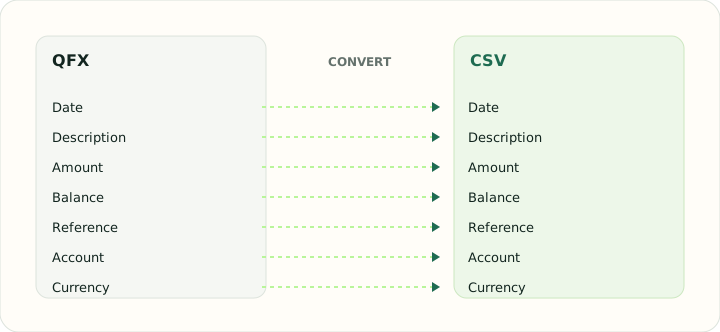
QFX transaction elements map directly onto CSV columns. The table shows the element and its column.
| Field | In QFX | In CSV |
|---|---|---|
| Date | DTPOSTED timestamp, date part used | One text column; ISO format recommended |
| Description | NAME holds the payee, MEMO the longer text | Free-text column, quoted when it contains commas |
| Amount | Signed TRNAMT value | Signed Amount column, or Debit and Credit columns |
| Balance | LEDGERBAL as of the download date | Optional Balance column |
| Reference | FITID from the bank, CHECKNUM for checks | Optional Reference column |
| Account | Account block with Quicken's INTU.BID institution ID | Not stored unless added as a column |
| Currency | CURDEF code | Not stored unless added as a column |
Converting QFX to CSV in practice
Extracting Quicken Web Connect data for spreadsheets
QFX files hold the same STMTTRN records as OFX plus Quicken's institution block. The converter reads the transaction blocks into Date, Type, Payee, Memo, Check Number, Amount and FITID columns, writes dates in ISO order and drops the time component that Quicken files often carry, since it is rarely meaningful outside the bank's own systems.
Investment QFX downloads contain positions and prices as well as transactions. Those sections are skipped with a note in the review summary; only banking and credit-card transaction lists are converted, so the CSV never mixes share quantities with cash amounts.
After converting, check that:
- The row count equals the transaction count shown in the review summary
- Investment sections were skipped rather than converted into rows
- Payee and memo were kept in separate columns
How to convert QFX to CSV in three steps
- 1Upload the QFXAdd one or more downloads.
- 2Check the summaryTransaction count and any skipped investment sections are shown.
- 3Download the CSVOpen it anywhere a table is accepted; the FITID column is there for de-duplication.
About QFX and CSV
QFX is Quicken's Web Connect format: OFX transaction blocks plus Quicken institution elements. Investment downloads add position and price sections that have no place in a transaction table.
CSV is a flat table; the converter carries account context into columns so several downloads can share one file.
Specifications and vendor help for QFX and CSV: Quicken support · RFC 4180, the CSV specification
Questions about CSV conversion
What happens to investment sections?
They are skipped and counted in the review summary; only banking and card transactions become rows.
Are identifiers preserved?
Yes, in a FITID column.
Why are times dropped?
They are almost always midnight in the bank's zone; the date is what matters.
Can I merge several downloads?
Yes. Account columns identify each row's source.
Does this handle a Quicken QFX to CSV export from any bank?
Yes. Quicken QFX files from any institution use the same statement blocks, so the bank does not matter; only investment sections are skipped.
Can I convert QFX to CSV free?
Yes. Uploading the QFX, checking the summary and downloading the CSV is free.