Only searchable tables with Date, Description, signed Amount and optional Balance columns are accepted.
Supported input and export details
PDF input is limited to searchable text files with a YYYY-MM-DD, Description and signed Amount transaction table. Scanned PDFs and other layouts are not supported; export CSV from your bank instead.
Set required export details in “Account and export details” before converting. The preview shows up to ten transactions and totals by account and currency. Opening or running balances are not inferred, and previewed transactions cannot be edited here. Download links expire after 24 hours.
Why convert Bank Statement files to CSV
PDF statements use many different layouts. This tool parses only its documented searchable table format instead of guessing section signs, wrapped lines or subtotals. The CSV is a working copy; compare it with the original before relying on it.
The parser does not infer section signs, join wrapped rows or remove subtotals.
Grouped transaction totals are shown for comparison; opening and closing balances are not checked.
Dates and signed Amount values are exported after validation; the tool does not guess missing values.
Scanned or image-only PDFs are not OCR-processed. Use a text-based PDF with the supported transaction table or export CSV from your bank.
The PDF is validated, hashed with SHA-256 and deleted from the server once the job record exists.
Who converts Bank Statement to CSV
Client statements from different banks land in one identical CSV layout, so month-end imports follow the same steps every time.
Review supported transaction rows in a plain table before doing any manual import.
A year of statements becomes one file that can be sorted by payee and summed by category in minutes.
Keep a working copy of supported transaction rows alongside the original PDF.
Bank Statement to CSV: how each field is mapped
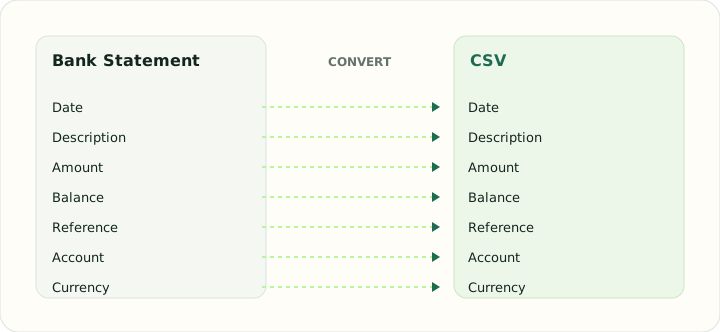
A CSV has no header block and no balance table, so several parts of a statement have nowhere to go. The table shows what is carried, what is dropped and where each value ends up.
| Field | In Bank Statement | In CSV |
|---|---|---|
| Date | Transaction and posting dates printed on each line | One text column; ISO format recommended |
| Description | Merchant or payee text, often wrapped over two lines | Free-text column, quoted when it contains commas |
| Amount | Separate debit and credit columns, or a signed amount | Signed Amount column, or Debit and Credit columns |
| Balance | Running balance after each line on most statements | Optional Balance column |
| Reference | Check numbers and bank references inside the description | Optional Reference column |
| Account | Masked account number and statement period in the header | Not stored unless added as a column |
| Currency | Statement currency in the header | Not stored unless added as a column |
Converting Bank Statement to CSV in practice
What changes when a PDF statement becomes a CSV
PDF statements vary widely in layout. This converter accepts only searchable PDFs whose transaction table has Date, Description, signed Amount and optional Balance columns with YYYY-MM-DD dates. It rejects other layouts instead of trying to infer section labels, subtotals or wrapped descriptions.
The export contains the rows that match the supported table and a summary of parsed amounts. It does not calculate or validate statement opening, closing or running balances. Compare the result against the original, or export CSV from your bank when its PDF uses another layout.
After converting, check that:
- The PDF uses the supported Date, Description, Amount and optional Balance table
- The parsed row count matches the transaction rows you expect
- Dates and signed amounts match the source PDF
Bank statement to CSV file: the column layout
The exported CSV file uses a single header row followed by one transaction per line: Date, Description, Debit, Credit, Amount, Balance, Source File and Page. Values are UTF-8 encoded, dates use the unambiguous ISO format (YYYY-MM-DD), amounts contain no currency symbols or thousands separators, and descriptions that contain commas are quoted so the file opens correctly in Excel, Google Sheets, Numbers and accounting import tools.
Bank PDF to CSV for accounting software
Many accounting products, including QuickBooks Online, Xero and Wave, accept CSV bank transaction imports but reject files with merged cells, summary rows or inconsistent date formats. Converting the bank PDF to CSV through a review step removes statement headers, page footers and balance-forward lines so only genuine transactions remain. If your software needs a dedicated format instead, use the Bank Statement to QBO or Bank Statement to OFX converters.
Converting several bank statements to CSV
Upload up to 20 PDF bank statements in one job to produce a single CSV covering the whole period. Consecutive statements are processed in date order, and the running balance lets you confirm there are no missing pages or duplicated transactions between months before you import the file.
How to convert Bank Statement to CSV in three steps
- 1Upload searchable PDFsAdd up to twenty PDFs that match the supported transaction table layout.
- 2Check the extracted rowsReview a preview of up to ten transactions and grouped totals. The exported file does not include source page numbers.
- 3Download the CSVOpen it in a spreadsheet or feed it to your accounting import. Keep the PDF as the official record.
About Bank Statement and CSV
A bank statement PDF is authoritative but layouts vary. This converter only accepts a strict searchable text table; other layouts and image-only scans need a bank CSV export or a purpose-built parser.
CSV is a flat table. The converter preserves parsed transaction fields and source filename, but does not recover statement headers, page numbers or a statement period.
Specifications and vendor help for Bank Statement and CSV: RFC 4180, the CSV specification
Questions about CSV conversion
Which columns will the CSV contain?
Date, Payee, Memo, Debit, Credit, Amount, Balance, Reference, FITID, Account, Currency, Category and Source file. Page numbers and other statement metadata are not extracted.
What about statements that are scanned images?
OCR is not available. Use a text-based PDF in the supported table layout or export CSV from your bank.
Does it validate statement balances?
No. A Balance column is copied only when it appears in the supported table; opening and closing balance reconciliation is not performed.
Can I convert several months at once?
Yes. Up to twenty matching PDFs can be processed, with source filenames retained per row.