Each transaction is written with D, T, P, M and N lines and closed with a caret, under the right account-type header.
Supported input and export details
CSV input requires Date and Amount columns, or Date with both Debit and Credit columns. Ambiguous dates require the date order to be selected.
QIF cannot carry multiple currencies or opening and running balances.
Set required export details in “Account and export details” before converting. The preview shows up to ten transactions and totals by account and currency. Opening or running balances are not inferred, and previewed transactions cannot be edited here. Download links expire after 24 hours.
Why use this CSV to QIF converter
Plenty of budgeting tools and older desktop packages import QIF and nothing newer. The format is simple, but writing it by hand means getting the header, the field letters and the record separators exactly right, and choosing a date order the importing program will read correctly. This converter handles all of that from the CSV.
QIF has no locale marker, so you pick the order the importing program expects and the file is written that way.
A reference or check column is written to the N field instead of being buried in the payee.
A category column becomes an L line, which most QIF importers map directly.
The output is plain text, so it can be inspected or edited before import.
The upload is checksummed and removed from the server.
Who converts CSV to QIF
Bank CSV exports import into apps that only read QIF.
Versions without Web Connect still accept QIF for banking accounts.
GnuCash, HomeBank and similar programs import QIF reliably.
History exported as CSV from a discontinued service moves into a QIF-based program.
CSV to QIF: how each field is mapped
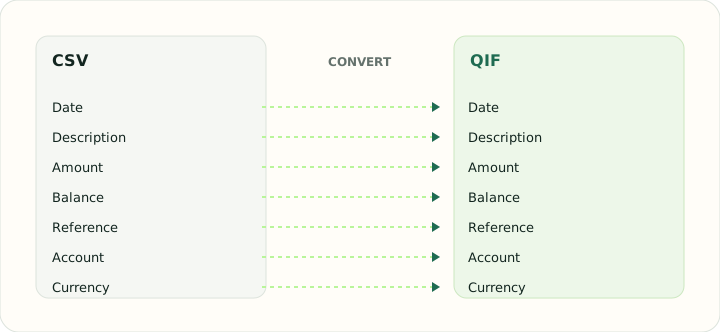
QIF stores a small set of fields per record. The table shows which CSV column feeds each letter code and what has no equivalent.
| Field | In CSV | In QIF |
|---|---|---|
| Date | One text column; ISO format recommended | D line, locale-dependent format |
| Description | Free-text column, quoted when it contains commas | P (payee) and M (memo) lines |
| Amount | Signed Amount column, or Debit and Credit columns | T line, signed |
| Balance | Optional Balance column | Not stored |
| Reference | Optional Reference column | N line for check number |
| Account | Not stored unless added as a column | !Account header block |
| Currency | Not stored unless added as a column | Not stored; account currency applies |
Converting CSV to QIF in practice
Writing a legacy QIF file from CSV rows
QIF is the simplest of the Quicken formats: a header line naming the account type, then one record per transaction with D for date, T for amount, P for payee, M for memo and N for check number, each record closed with a caret. The converter writes exactly that structure from the CSV, which makes the result readable in a text editor and accepted by budgeting apps that never adopted OFX.
The weak point of QIF is the date. The format has no locale marker, so a file written with UK dates and imported into US Quicken silently swaps day and month for the first twelve days of every month. The converter asks for the destination's date convention during review and writes dates in that order rather than copying the CSV's.
After converting, check that:
- The account type header matches the destination account
- Dates were written in the locale the importing program expects
- Check numbers appear on N lines, not inside the payee
How to convert CSV to QIF in three steps
- 1Upload the CSVAdd the export and confirm which columns hold the date, description and amount.
- 2Choose the destination's date orderSelect the account type and the date convention the importing program uses.
- 3Download the QIFImport it into your software. Test with one month first if the program cannot undo an import.
About CSV and QIF
A CSV is a flat table whose columns and date order depend on the exporter. Before writing QIF, the converter confirms those conventions so the output is unambiguous.
QIF is a line-oriented text format: a header naming the account type, then records of letter-coded fields. It has no transaction identifier and no locale marker, which makes date order and duplicate handling the user's responsibility.
Specifications and vendor help for CSV and QIF: RFC 4180, the CSV specification · Quicken support
Questions about QIF conversion
Which date order should the QIF use?
The one your importing program expects. US Quicken expects month/day/year; most other programs let you set it in preferences.
Does QIF support split transactions?
Yes. If the CSV has several category rows for one transaction, they are written as S, E and $ lines under the parent record.
Will importing twice duplicate transactions?
It can. QIF carries no transaction identifiers, so import each period only once and check the register first.
Can I open the QIF in a text editor?
Yes. It is plain text and can be inspected or corrected before import.
Is this a csv to qif converter free download?
There is nothing to download or install: the csv to qif converter runs online and gives you the QIF file directly.
Do I need a CSV to QIF Excel add-in?
No. Save the worksheet as CSV and upload it here; the converter writes the QIF without any Excel add-in.
Can I convert Excel to QIF or convert CSV to Quicken format on a Mac?
Yes. The tool is browser-based, so it works the same on Mac and Windows; export the sheet as CSV first.