The converter shows transaction totals, but does not verify source-file balances.
Why this bank statement converter
Statements are written for reading. Columns are aligned by position rather than delimited, descriptions wrap onto a second line, and subtotals look exactly like transactions to a naive parser. The converter reads the statement the way a bookkeeper does: it finds the transaction table on each page, uses the section headings to fix the direction of every amount, drops the summary lines, and then proves the result against the balances the bank printed.
Dates are dates, amounts are numbers and reference numbers stay text with their leading zeros, whichever format you export.
The upload box never changes. Choose a tool above and only the instructions and output format switch.
Scanned/image-only PDFs are not supported; other PDF layouts receive a clear error.
Up to 20 files per batch. PDF input requires the documented searchable text table; scanned PDFs are not supported.
Uploads are validated, hashed with SHA-256 and deleted once the job record exists. The original never leaves your device in editable form.
Supported file layouts
PDF conversion supports searchable text with a YYYY-MM-DD, Description and signed Amount table. Scanned PDFs, unknown layouts, investment records, QIF split transactions and multi-split IIF transactions are rejected with an explanation.
The preview shows up to ten transaction rows and grouped totals. Statement opening and running balances are not inferred or reconciled.
How the bank statement converter works
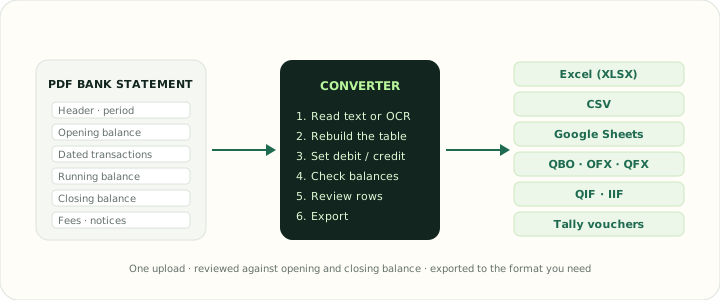
- 1Choose a tool and uploadPick the output you need from the tools above, then drop the statements into the box. Scanned PDFs are not supported; export CSV from your bank if its PDF layout differs.
- 2Review the transactionsReview a preview of the first ten transactions and the grouped totals. The conversion does not edit extracted rows.
- 3ExportDownload the workbook, CSV or accounting file and keep the PDF as the authoritative record. The export is a working copy for review and reconciliation.
What the converter keeps from the statement
A useful conversion carries the meaning of every line, not just its visible text. These are the fields the converter preserves and the checks it applies to each one.
| Field | What is preserved | Check applied |
|---|---|---|
| Transaction dates | Posting and transaction dates as real date values in the source's regional order | Ambiguous dates require a selected date order |
| Descriptions | Multi-line merchant text joined into one cell, references kept with their line | Unrecognized PDF rows are rejected rather than silently skipped |
| Debits and credits | Direction taken from the statement section or column, written as Debit, Credit and signed Amount | Compare totals with the original statement |
| Running balance | The balance printed after each line, where the statement has one | Running balances are not inferred |
| Account and period | Masked account number and statement period from the header | Review the dates and account values in the preview |
Bank statement converter outputs by destination
Excel, CSV and Google Sheets exports have one header row, one transaction per line, ISO dates and plain numeric amounts, so filters, SUMIFS and pivot tables work immediately.
QBO, QFX and OFX exports carry an institution block, account details and a generated identifier per transaction, so the import behaves like a bank feed with duplicate detection.
QIF and IIF exports are written with the record structure those programs expect, including balanced TRNS and SPL lines for QuickBooks Desktop.
Each statement line becomes a receipt, payment or contra voucher with the description kept as narration and the counter-ledger confirmed in review.
File handling in the bank statement converter
A statement reveals account identifiers, balances, counterparties and spending habits, so the handling rules are strict and visible. Each request is checked for file type and size. The job stores file metadata and a SHA-256 checksum. Source files are deleted after processing; the generated export is retained for up to 24 hours. The original document is not stored. Browser downloads land in your own download folder, so apply the same care to the exported file as to the original.
If you are reading statements for the first time, the consumer regulator's guidance on what a statement contains and how to dispute an error is a good companion: see Ask CFPB for US accounts, and the bank statement example page here for an annotated sample.
✓ File type validation✓ 25 MB per file, 20 files per job✓ SHA-256 checksum recorded✓ Temporary upload removed after the job
Bank statement converter FAQ
Which files does the bank statement converter accept?
PDF bank statements for the statement tools, and CSV, Excel, IIF, OFX, QBO, QFX and QIF files for the format tools. Each upload can be up to 25 MB and a job can hold 20 files.
Can it convert scanned statements?
Scanned/image-only PDFs are not supported. Use a text PDF in the documented table layout or export CSV from your bank.
Is my statement stored?
No. The upload is checked for type and size, a SHA-256 checksum is recorded against the job, and the temporary file is deleted from the server once the job has been created. The original stays on your device.
How do I know the conversion is complete?
A transaction preview and grouped totals are shown before export. This converter does not infer opening or running balances; compare the result with the original file.
Which output should I choose?
Excel or Google Sheets for review and analysis, CSV for accounting imports that accept a table, QBO or OFX when your software expects a bank feed, and Tally for voucher imports. Pick the tool above; the upload box stays the same.
Does it cost anything?
Creating a job, reviewing the extracted transactions and downloading the result is free, with nothing to install.