The export uses one header row and unambiguous ISO dates, which Sheets' automatic detection reads without adjustment.
Why convert Bank Statement files to Google Sheets
Google Sheets has no statement importer of its own, so the route is a clean spreadsheet file that File → Import can read without guessing. The converter produces exactly that: one header row, one transaction per line, ISO dates and plain numbers, with nothing from the statement's headers or footers left to confuse the importer.
Check and reference numbers are written as text so Sheets does not turn 000123 into 123.
A filename column lets a year of transactions be filtered by month once several statements share one sheet.
Opening balance, net movement and closing balance are reconciled on the review screen.
Upload, review and export happen in the browser; the import into Sheets takes two clicks.
The PDF is hashed, recorded against the job and deleted from the server once the job exists.
Who converts Bank Statement to Google Sheets
A shared sheet of transactions can be reviewed and categorised by several people at once.
Income and expense tracking in Sheets stays current without retyping monthly statements.
Clients share a sheet instead of emailing statement PDFs back and forth.
Treasurers keep a running ledger in a sheet that committee members can see.
Bank Statement to Google Sheets: how each field is mapped
Google Sheets stores the same typed values as Excel once the import has recognised them. The table shows where each statement field originates and how it appears after import.
| Field | In Bank Statement | In Google Sheets |
|---|---|---|
| Date | Transaction and posting dates printed on each line | Date cells recognised on import |
| Description | Merchant or payee text, often wrapped over two lines | Text cells |
| Amount | Separate debit and credit columns, or a signed amount | Numeric Debit, Credit and Amount cells |
| Balance | Running balance after each line on most statements | Numeric Balance column |
| Reference | Check numbers and bank references inside the description | Text cells |
| Account | Masked account number and statement period in the header | Sheet header or a dedicated column |
| Currency | Statement currency in the header | Number format applied per column |
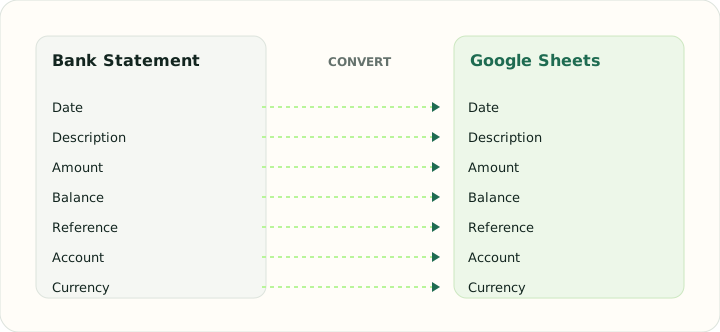
Converting Bank Statement to Google Sheets in practice
Preparing a statement for the Google Sheets importer
Google Sheets imports through File → Import and applies its own type detection. That detection is reliable when the file has exactly one header row, unambiguous ISO dates and amounts without currency symbols or thousands separators; it goes wrong when statement headers, page footers or wrapped descriptions leak into the data. The converter strips those lines before export so the Sheets importer sees a plain transaction table.
Because a Google Sheet is usually shared, the export keeps descriptions in a single cell and puts the statement filename in its own column, which makes it possible to filter a year of transactions by month or by account without splitting the sheet. Turn off the automatic conversion of text to numbers for the Reference column if your statement includes check numbers that begin with zero.
After converting, check that:
- Sheets recognised the Date column as dates (right-aligned, sortable)
- Amounts are numeric and the sum matches the statement's net movement
- Reference numbers were not converted to numbers
How to import a bank statement into Google Sheets
1. Upload your PDF bank statements above and create the conversion job. 2. Review the extracted transactions and export the spreadsheet file (CSV or XLSX). 3. In Google Sheets open File → Import, choose Upload and select the exported file. 4. Pick Replace spreadsheet or Insert new sheet, keep Detect automatically for the separator, and leave Convert text to numbers, dates and formulas enabled. 5. Check that the Date column is recognized as dates and that identifiers kept their leading zeros.
Bank statement to spreadsheet: why Google Sheets needs a clean file
Google Sheets imports whatever it is given, so statement headers, page footers, balance-forward lines and wrapped descriptions become junk rows that break formulas and pivot tables. The review step removes those lines before export and leaves a single header row, one transaction per line, ISO dates and plain numeric amounts, which is exactly what Sheets' import expects.
Automatically download bank transactions to a spreadsheet
Some banks offer a direct CSV or OFX export from online banking, and Google Sheets add-ons can sync those feeds automatically. When a bank only provides PDF statements, or when you need historical months that are no longer available as a feed, converting the PDF is the practical route. Convert each month's statement once, import it into the same Google Sheet, and use the running balance to confirm the months join up without gaps.
Sharing and formulas after import
Once the transactions are in Google Sheets you can share the sheet with an accountant, add a category column with data validation, build SUMIFS totals by category or month, and use pivot tables for monthly cash-flow summaries. Keep the original PDF statement as the authoritative record and treat the sheet as a working copy.
How to convert Bank Statement to Google Sheets in three steps
- 1Upload the statement PDFsAdd one or more statements. The job accepts up to twenty files and orders them by date.
- 2Review, then exportConfirm the transaction count and balances, then download the spreadsheet file.
- 3Import into Google SheetsIn Sheets choose File → Import → Upload, select the file, and keep automatic detection on. Check that the Date column is right-aligned, which shows it was recognised as dates.
About Bank Statement and Google Sheets
A statement PDF is built for a reader: section headers, subtotals and page footers sit between the transaction lines, and the converter's job is to tell them apart.
Google Sheets is a browser spreadsheet that imports CSV and XLSX files and applies its own type detection. The cleaner the file, the more reliable that detection, which is why the export contains nothing but the transaction table.
Specifications and vendor help for Bank Statement and Google Sheets: Google Sheets import help
Questions about Google Sheets conversion
Does the converter write directly into my Google account?
No. It produces a spreadsheet file which you import into Sheets yourself, so no Google permissions are required.
Which file type should I import?
Either CSV or XLSX works. XLSX preserves cell types; CSV is smaller and equally reliable with ISO dates.
Will Sheets change my reference numbers?
Not if the Reference column stays as text, which the export ensures. Leave the import option to convert text to numbers on for the other columns.
Can I combine several months in one sheet?
Yes. Convert them in one job and import once; the filename column identifies each month.
What happens to the PDF I upload?
It is validated, checksummed and removed from the server after the job is created.