The INTU.BID element and account block Quicken checks are added so the file is accepted.
Supported input and export details
CSV input requires Date and Amount columns, or Date with both Debit and Credit columns. Ambiguous dates require the date order to be selected.
This export requires an account ID, currency, actual closing balance and date; bank feeds also require a valid numeric institution ID and a routing ID for checking or savings accounts. These values are not guessed, and destination compatibility is not guaranteed.
Set required export details in “Account and export details” before converting. The preview shows up to ten transactions and totals by account and currency. Opening or running balances are not inferred, and previewed transactions cannot be edited here. Download links expire after 24 hours.
Why convert CSV files to QFX
Quicken imports QFX through Web Connect and treats it like a download from the bank. When a bank offers only CSV, or when older history exists only in a spreadsheet, converting to QFX restores the import path Quicken was designed around, complete with the identifiers it uses to avoid double-counting.
Descriptions are shortened to Quicken's payee length and the full text is retained in the memo.
A category column, if present, is placed in the memo because QFX has no category field.
Identifiers are built from date, amount and description, so re-converting the same CSV cannot duplicate the register.
Column roles and the date order are shown before export.
The CSV is not kept: it is checked, fingerprinted and deleted immediately after the job is created.
Who converts CSV to QFX
Accounts whose bank only exports CSV can still be imported through Web Connect.
Card and wallet exports join the rest of the household's accounts with matching and renaming rules.
Client exports are converted to a form Quicken tracks alongside connected accounts.
Years of exported transactions can be loaded into a new Quicken file in one job.
CSV to QFX: how each field is mapped
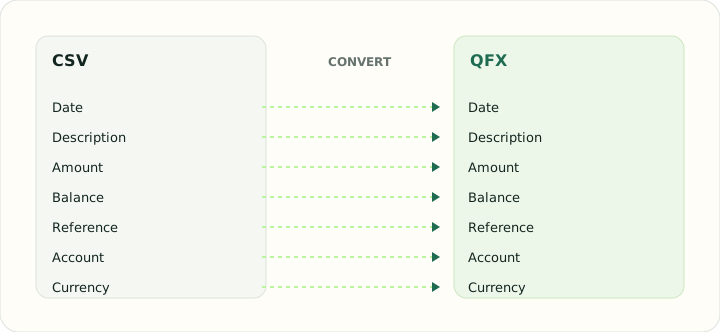
QFX is Quicken's Web Connect flavour of OFX. The table shows how each CSV column is represented and which values Quicken reads for matching.
| Field | In CSV | In QFX |
|---|---|---|
| Date | One text column; ISO format recommended | DTPOSTED timestamp, date part used |
| Description | Free-text column, quoted when it contains commas | NAME holds the payee, MEMO the longer text |
| Amount | Signed Amount column, or Debit and Credit columns | Signed TRNAMT value |
| Balance | Optional Balance column | LEDGERBAL as of the download date |
| Reference | Optional Reference column | FITID from the bank, CHECKNUM for checks |
| Account | Not stored unless added as a column | Account block with Quicken's INTU.BID institution ID |
| Currency | Not stored unless added as a column | CURDEF code |
Converting CSV to QFX in practice
Building a Quicken Web Connect file from a spreadsheet export
QFX requires a valid institution ID and account-feed metadata. Enter the actual institution and account IDs, currency, account type, closing balance and its date; bank accounts also require routing details. No compatibility with a specific Quicken account is promised.
CSV input requires Date and Amount, or Date plus Debit and Credit columns. The payee, memo, reference and category fields are included when available; ambiguous dates require your date-order choice.
After converting, check that:
- Quicken offered to link the import to the intended account
- Payee names are readable and the full description is in the memo
- Amount signs match the CSV's money in and money out
How to convert CSV to QFX in three steps
- 1Upload the CSVAdd the export and check the detected columns.
- 2Confirm account and datesChoose the account type and currency, and confirm the date locale.
- 3Download and import into QuickenOpen the QFX in Quicken, link it to the intended account when prompted, and accept the transactions.
About CSV and QFX
A CSV holds transaction rows and nothing else. The account it belongs to, the currency and the date convention are all implied by the exporter, so the converter asks for them once and applies them to every row.
QFX carries the same transaction blocks as OFX plus Quicken's institution identifier. Quicken uses the identifier to accept the file and the per-transaction FITIDs to avoid importing anything twice.
Specifications and vendor help for CSV and QFX: RFC 4180, the CSV specification · Quicken support
Questions about QFX conversion
Will Quicken ask which account the file belongs to?
On the first import, yes. After you link it, later files with the same account details import directly.
Do I lose categories?
They are kept in the memo. Quicken assigns categories through its renaming and memorised payee rules.
What happens if I import the same file twice?
Quicken recognises the identifiers and skips the duplicates.
Can I convert a brokerage CSV?
Only banking and credit card transactions are supported; investment activity needs a different structure.
Can I convert a CSV file to QFX without Quicken installed?
Yes. The conversion runs in the browser; Quicken is only needed to import the finished QFX file.
Is a csv to qfx conversion reversible?
Not automatically. Keep the original CSV, because QFX stores fewer columns and a category column, for example, survives only in the memo.
Does the csv to qfx converter work on Mac?
Yes. It runs in the browser, so CSV to QFX on Mac works the same as on Windows, and Quicken for Mac imports the result through Web Connect.