Each TRNS block becomes a D, T, P, M, N and L record closed with a caret, under the account-type header the destination expects.
Why convert IIF files to QIF
QuickBooks Desktop writes IIF, Quicken reads QIF, and neither program imports the other's format. The two files describe the same transactions differently: IIF as balanced TRNS and SPL lines with account names, QIF as a single-sided record with a payee, an amount and a category. The converter reads each IIF transaction, picks the bank-account side as the record, and writes the offsetting account name into the QIF category line so nothing about where the money went is lost.
The SPL account names are written to the L line, so Quicken can map them to its own categories on import.
Transactions with several SPL lines are written as QIF splits with S, E and $ lines rather than collapsed to one amount.
DOCNUM values go to the N line, where Quicken shows them as check numbers.
IIF dates follow the exporting computer's locale and QIF has no locale marker, so both are confirmed in review.
The IIF is validated, hashed with SHA-256 and deleted from the server once the job exists.
Who converts IIF to QIF
Years of Desktop history arrive in Quicken without re-entering transactions.
A client who keeps personal accounts in Quicken receives business transactions from a QuickBooks export.
Apps that read QIF but not IIF can import a QuickBooks bank register.
A plain-text QIF copy of an IIF export stays readable without either program.
IIF to QIF: how each field is mapped
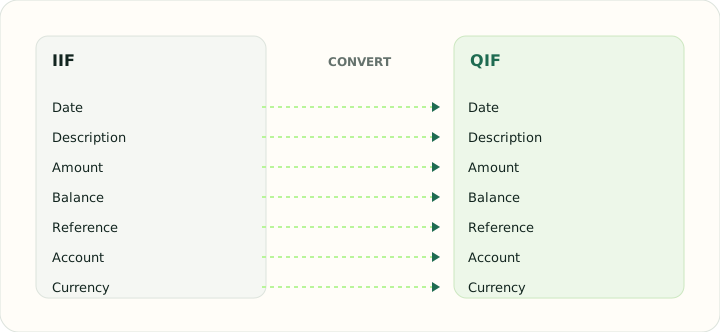
IIF carries both sides of every entry; QIF carries one side plus a category. The table shows which IIF field feeds each QIF letter code and what has no equivalent.
| Field | In IIF | In QIF |
|---|---|---|
| Date | DATE field on each TRNS line | D line, locale-dependent format |
| Description | NAME and MEMO fields | P (payee) and M (memo) lines |
| Amount | Signed AMOUNT with balancing SPL lines | T line, signed |
| Balance | Not stored; QuickBooks recalculates it | Not stored |
| Reference | DOCNUM field | N line for check number |
| Account | ACCNT name that must exist in the company file | !Account header block |
| Currency | Company currency | Not stored; account currency applies |
Converting IIF to QIF in practice
Two programs that never learned each other's format
QuickBooks Desktop and Quicken share a publisher but not an import format. An IIF transaction is double-entry: a TRNS line on the bank account and SPL lines on the offsetting accounts, each carrying the company file's exact account names. A QIF record is single-entry: a date, an amount, a payee and, optionally, a category. The converter chooses the TRNS side as the record and demotes the SPL account to the L category line, which is the closest thing QIF has to an account reference.
Two details decide whether the import goes smoothly. First, the date: IIF dates are written in the exporting computer's locale and QIF has no marker, so both conventions are confirmed in review and the file is written the way the destination expects. Second, the account-type header: a checking export needs !Type:Bank and a card export !Type:CCard, or Quicken will offer the wrong account list on import.
After converting, check that:
- The !Type header names the account type Quicken should import into
- Each transaction's category line names the IIF offset account
- Every D line follows the date order chosen in review
How to convert IIF to QIF in three steps
- 1Upload the IIF exportAdd the file from QuickBooks Desktop. Transaction and list sections are detected; only transactions are converted.
- 2Choose the bank account and date orderSelect which account the QIF represents and the date convention the importing program uses.
- 3Download the QIFImport it into Quicken or your budgeting app. Test with one month first, because QIF has no duplicate detection.
About IIF and QIF
IIF is QuickBooks Desktop's tab-delimited export. Column definitions are declared once per record type and each transaction is a TRNS line with one or more SPL lines that balance it, all using account names from the company file.
QIF is the legacy Quicken interchange format: letter-coded lines per record, no identifiers, no balances and no locale marker. It is still the widest-read import format among budgeting tools.
Specifications and vendor help for IIF and QIF: QuickBooks support · Quicken support
Questions about QIF conversion
Which account does the QIF represent?
The bank or credit-card account on the TRNS line. If an export contains several accounts, choose one in review or convert them into separate QIF files.
What happens to the IIF's account names?
The offsetting account becomes the QIF category (L line), so Quicken can map it to a category on import.
Are splits kept?
Yes. Transactions with more than one SPL line are written as QIF split records.
Will Quicken detect duplicates?
No. QIF has no identifiers, so import each period once and check the register before repeating.
Is this an iif to qif converter for Quicken specifically?
Yes. The output follows the QIF structure Quicken has read since its early releases, and it also imports into budgeting apps that accept QIF.