Headers are detected, so the CSV does not have to be rearranged into the QuickBooks upload template.
Supported input and export details
CSV input requires Date and Amount columns, or Date with both Debit and Credit columns. Ambiguous dates require the date order to be selected.
This export requires an account ID, currency, actual closing balance and date; bank feeds also require a valid numeric institution ID and a routing ID for checking or savings accounts. These values are not guessed, and destination compatibility is not guaranteed.
Set required export details in “Account and export details” before converting. The preview shows up to ten transactions and totals by account and currency. Opening or running balances are not inferred, and previewed transactions cannot be edited here. Download links expire after 24 hours.
Why use this CSV to QBO converter
QuickBooks Online's CSV upload accepts only three fixed layouts and rejects anything else. A QBO file bypasses the layout rules and arrives through Web Connect, so QuickBooks applies bank rules, proposes matches and screens for duplicates. Converting the CSV once is faster than rebuilding it to fit the upload template every month.
The INTU.BID and account block QuickBooks validates are written for you.
Long descriptions are divided so the payee fits QuickBooks' NAME field and the rest is kept in MEMO.
A FITID per row means uploading the same period twice is flagged by QuickBooks.
Separate columns are used when present; otherwise negative values are treated as money out, as bank exports do.
The CSV is hashed for the job record and removed from the server.
Who converts CSV to QBO
Bank exports that fail the CSV upload template import through Web Connect instead.
Review converted rows and enter valid bank-feed metadata before testing an import.
Processor exports become bank-feed style imports with matching against invoices.
Web Connect imports work in Desktop as well, so one file serves either product.
CSV to QBO: how each field is mapped
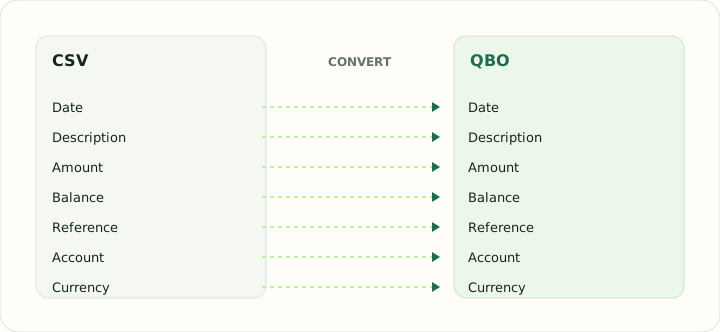
QBO is OFX with QuickBooks-specific header fields. The table shows how each CSV column is placed and which fields QuickBooks uses for matching.
| Field | In CSV | In QBO |
|---|---|---|
| Date | One text column; ISO format recommended | Posting date as a DTPOSTED timestamp |
| Description | Free-text column, quoted when it contains commas | Payee in NAME, detail in MEMO |
| Amount | Signed Amount column, or Debit and Credit columns | TRNAMT, negative for money out |
| Balance | Optional Balance column | Closing balance in LEDGERBAL |
| Reference | Optional Reference column | Bank identifier FITID; CHECKNUM when present |
| Account | Not stored unless added as a column | Account block plus the INTU.BID number QuickBooks validates |
| Currency | Not stored unless added as a column | Three-letter code in CURDEF |
Converting CSV to QBO in practice
Preparing a CSV for QuickBooks Web Connect
QBO exports require a valid institution ID, account ID, currency, account type, closing balance and balance date; checking and savings also require a routing ID. The converter refuses to invent institution data, and cannot guarantee acceptance by QuickBooks or apply its matching rules.
CSV input requires Date and Amount, or Date plus Debit and Credit columns. Ambiguous dates require your date-order choice. Amount signs carry through; long descriptions are not split into separate fields automatically.
After converting, check that:
- QuickBooks recognised the account type you selected during review
- Long descriptions were kept in the memo, not cut off
- No transaction was flagged as a duplicate of an earlier upload unless it really was
How to convert CSV to QBO in three steps
- 1Upload the CSVAdd the bank or processor export and confirm the detected columns.
- 2Choose the account typeSelect checking, savings or credit card and confirm the date locale and amount signs.
- 3Download and upload to QuickBooksUse Upload transactions in QuickBooks Online or Web Connect in Desktop, then review the proposed matches.
About CSV and QBO
A CSV from a bank or payment platform is a plain table whose only structure is its header row. Which column is the payee, how dates are ordered and what a negative number means all vary by exporter.
QBO is the QuickBooks Web Connect format. It carries an institution identifier, an account block with a supported type, and transactions with unique identifiers, which is what lets QuickBooks match and de-duplicate.
Specifications and vendor help for CSV and QBO: RFC 4180, the CSV specification · QuickBooks support
Questions about QBO conversion
Why not use QuickBooks' own CSV upload?
It works only for three fixed layouts, has no institution context and applies weaker duplicate checks. A QBO upload behaves like a bank feed.
Will bank rules apply?
QuickBooks controls bank rules and matching after import. This converter does not apply or verify them.
What if my CSV has a category column?
It is carried into MEMO for reference; QuickBooks assigns categories through its own rules.
Can I convert a PayPal or Stripe export?
Yes. Choose the account type that matches how you track that balance in QuickBooks.
Is this csv to qbo converter free online?
Yes. Uploading the CSV, choosing the account type and downloading the QBO is free, and everything runs in the browser.
Can I convert a CSV file to QBO for QuickBooks Desktop as well as Online?
Yes. The same QBO file uploads through Web Connect in QuickBooks Desktop and through Upload transactions in QuickBooks Online.
Is there a csv to quickbooks converter for other file types?
Use the QIF to QBO, OFX to QBO or QFX to QBO tools for those sources; each writes the same QuickBooks-ready QBO structure.
Is the csv to qbo converter free?
Yes. Uploading the CSV, choosing the account type and downloading the QBO is free.