BLOG
What Is a QIF File? Quicken Interchange Format Explained
What is a QIF file? It is a plain-text export in the Quicken Interchange Format, one of the oldest ways of moving personal-finance transactions between programs. Many budgeting apps still read and write it, but it has quirks, ambiguous dates and no duplicate protection, that are worth understanding before you import one.
What is a QIF file?
A .qif file holds transactions in the Quicken Interchange Format, which dates from the early versions of Quicken and was designed to move data between Quicken and other programs. Unlike OFX, QFX or QBO, it is not a bank download format with an account block and transaction IDs. It is a simple text list: a header that names the account type, then one transaction after another, each written as a few short lines.
Because it is so simple, almost any finance program could read it, and many still do. That same simplicity is why newer formats replaced it for bank downloads: a QIF file cannot say which bank or account it came from, and it cannot tell software whether a transaction has already been imported.
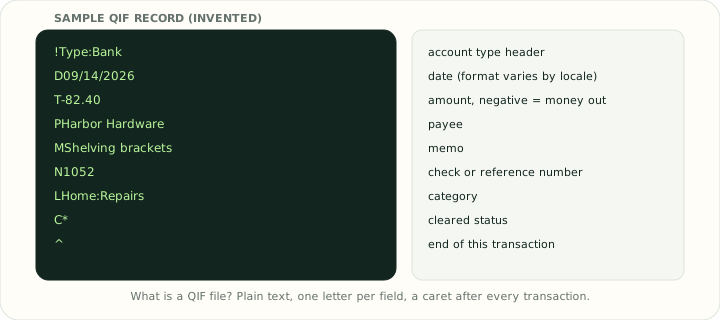
How a QIF file is structured
The first line declares the type of account, for example !Type:Bank for a checking account or !Type:CCard for a credit card. After that, each transaction is a group of lines, and the first character of each line says what it holds: D for the date, T for the amount, P for the payee, M for a memo, N for a check or reference number, L for the category and C for the cleared status. A line containing only ^ ends the transaction.
Split transactions repeat three codes, S for each split's category, E for its memo and $ for its amount, and the split amounts must add up to the total. Files exported from Quicken can also contain several accounts, each introduced by an !Account block, as well as category and class lists. A bank export is usually much simpler: one account type and a run of transactions.
Why QIF dates and duplicates cause trouble
QIF has no fixed date format. The exporting program writes dates the way its locale does, so 04/05/2026 could be 4 May or April 5, and some Quicken versions write years after 2000 with an apostrophe, such as 9/14'26. An importer has to be told the date order, and if it guesses wrong, every transaction after the twelfth of the month lands in the wrong place or fails.
The bigger problem is duplicates. A QIF transaction has no unique ID, so importing two files with overlapping dates brings the overlap in twice, and the importing program can only guess by comparing dates and amounts. Keep a note of the date range of each QIF file you import, and never import the same period twice. Amounts can also carry thousands separators, and there is no currency field at all; the account's currency is assumed.
Which programs still use QIF files?
QIF survives because so many tools understand it. GnuCash, Moneydance, Banktivity, HomeBank and many budgeting apps import QIF files, and plenty of older or smaller banks still offer a QIF download alongside CSV. Quicken itself is the exception you might not expect: Quicken for Windows has for many years limited QIF imports into bank and credit card accounts and steers users towards QFX downloads instead, so check what your version allows before relying on it.
If a program you use exports only QIF, it is still a reasonable way to move data, as long as you set the date order deliberately and check the result against a statement.
Transfers between accounts in a QIF file
A QIF file marks a transfer by putting the other account's name in square brackets in the category line, for example L[Savings]. That is useful, because the importing program can record the movement in both accounts at once, but it creates a trap. If you import the checking account's QIF file and then the savings account's file, the same transfer can arrive twice: once from each side. Import one side, check whether the program has already created the matching entry in the other account, and delete or skip the duplicate before moving on.
Exporting a QIF file
Quicken for Windows can export a QIF file from its File menu, choosing the account and date range. Many budgeting apps list QIF among their export formats, and some older bank websites still offer it as a download. Not every program writes QIF: GnuCash, for example, imports QIF files but does not export them. Before exporting, decide which date format the receiving program expects and, if the export screen offers a choice, pick an unambiguous one.
Checking a QIF file before you import it
- Open a copy in a text editor and confirm the first line is a type header such as
!Type:Bank. - Look at a date where the day is above 12 to learn the date order the file uses.
- Count the
^lines: there is one per transaction. - Search for
L[to find transfers that might duplicate entries in another account. - Note the first and last date so you can avoid importing the same period again.
QIF compared with QFX, OFX and CSV
| QIF | QFX / OFX | CSV | |
|---|---|---|---|
| Structure | Lettered lines per field | Tagged statement | Rows and columns |
| Account and bank details | Account type only | Account, bank ID, currency | Only if added as columns |
| Unique transaction IDs | No | Yes (FITID) | No |
| Date format | Varies by locale | Fixed YYYYMMDD | Varies by export |
| Splits and categories | Yes | No | Only as extra columns |
| Best for | Moving data between budgeting apps | Bank downloads into finance software | Spreadsheets |
The one thing QIF does better is carry categories and splits, because it was designed to move a person's own records, not a bank's. That is why it is still useful when switching between personal-finance programs.
Converting a QIF file
To read QIF transactions in a spreadsheet, use QIF to Excel or QIF to CSV; for a printable copy, QIF to PDF; and to move them into QuickBooks, QIF to QBO. In the other direction, CSV to QIF and QFX to QIF create QIF files for programs that need them. Two limits apply on this site: split transactions are not supported, and when a file's dates are ambiguous you choose the date order before converting rather than letting the converter guess.
Frequently asked questions
Can I open a QIF file in a text editor?
Yes. It is plain text, and the lettered lines are easy to read once you know the codes in the appendix.
Does Quicken still support QIF?
Partly. Support depends on the version and the account type, and Quicken for Windows prefers QFX for bank and card accounts.
Why did my QIF import create duplicates?
QIF has no transaction IDs, so overlapping date ranges are imported twice. Delete the overlap and import non-overlapping periods.
Why are my QIF dates wrong after import?
The day and month order was read the wrong way. Re-import with the correct date order set.
Final takeaway
So, what is a QIF file? A simple, readable, decades-old text format for transactions that many finance programs still understand. Use it to move records between budgeting apps, set the date order explicitly when importing, and prefer QFX, OFX or QBO downloads for bank data, because only those carry the IDs that keep duplicates out.
Appendix: QIF file reference
A. QIF field codes
| Code | Field | Example |
|---|---|---|
| D | Date | D09/14/2026 |
| T | Amount | T-82.40 |
| P | Payee | PHarbor Hardware |
| M | Memo | MShelving brackets |
| N | Check or reference number | N1052 |
| L | Category, or [Account] for a transfer | LHome:Repairs |
| C | Cleared status: * cleared, X reconciled | C* |
| S, E, $ | Split category, split memo, split amount | SHome:Repairs |
| ^ | End of transaction | ^ |
B. QIF type headers
| Header | Account type |
|---|---|
| !Type:Bank | Checking or savings |
| !Type:CCard | Credit card |
| !Type:Cash | Cash |
| !Type:Oth A | Other asset |
| !Type:Oth L | Other liability |
| !Type:Invst | Investment |
C. A short QIF bank file
!Type:Bank
D09/01/2026
T2,450.00
PLake Dental
MInvoice 1182
LSales
^
D09/14/2026
T-82.40
PHarbor Hardware
N1052
LHome:Repairs
^
All values above are invented. Quicken's help centre covers which versions accept QIF imports: Quicken support.