BLOG
How to Convert Bank Statement PDF to Excel: 5 Methods
Knowing how to convert bank statement PDF to Excel saves hours of retyping when you need to categorise spending, prepare a tax return or hand a year of transactions to a bookkeeper. This guide compares five methods, shows which one suits your file, and explains how to check that the spreadsheet matches the statement before you rely on it.
How to convert bank statement PDF to Excel: pick a method first
A PDF bank statement is built for people to read. Its transactions sit on a page as positioned text, with page headers, running balances and descriptions that wrap onto a second line. Excel needs the opposite: one row per transaction and one column per field. Every method below bridges that gap in a different way, and the right one depends on how many statements you have, whether the PDF is searchable, and how much clean-up you are willing to do afterwards.
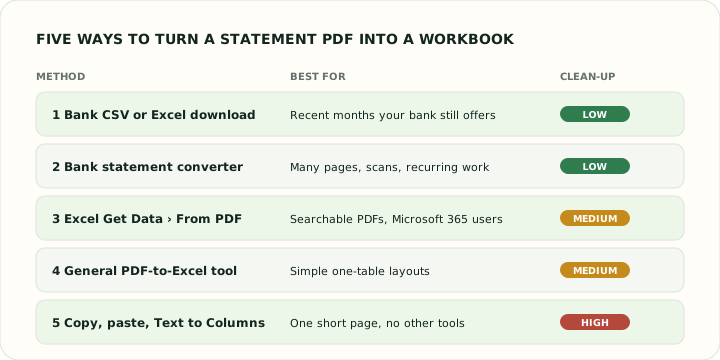
| Method | Works on scanned PDFs | Good for many pages | Typical clean-up |
|---|---|---|---|
| Bank CSV or Excel download | Not needed | Yes | Little |
| Bank statement converter | Yes, with OCR or AI extraction | Yes | Little |
| Excel Get Data from PDF | No | Moderate | Some |
| General PDF-to-Excel tool | Sometimes | Moderate | Some to a lot |
| Copy, paste and Text to Columns | No | No | A lot |
Before you convert: check which kind of bank statement PDF you have
Open the statement and try to select a line of transaction text with your cursor. If the words highlight and you can copy them into a text editor, the PDF is searchable: the characters are stored in the file, and any method on this page can read them. If the whole page highlights as one picture, the PDF is a scan or a photo, and only tools with optical character recognition (OCR) or AI extraction can turn it into rows.
Two other checks save time later. First, see whether the file asks for a password when it opens; many banks protect e-statements with a date of birth or part of an account number, and most tools cannot read a locked file. The bank statement to Excel converter asks for the statement password when you add a protected PDF and unlocks it in your browser, so the password is never uploaded. Second, note the opening and closing balance printed on the first and last page. You will use them at the end to prove the conversion is complete.
Method 1: download the bank statement as Excel or CSV
The cleanest conversion is the one you do not have to do. Most online banking services let you export recent transactions as CSV, and some offer an Excel or Microsoft Money file as well. Look for an option called Export, Download transactions or Statements and documents, choose the account and date range, and select CSV or XLS. The file opens in Excel with dates, descriptions and amounts already in separate columns.
The catch is coverage. Banks often limit downloads to the last 90 days, 18 months or a few years, and closed accounts may have no download at all. A CSV export can also differ from the PDF: it may show pending items, use a single signed amount column instead of separate money in and money out columns, or leave out the running balance. If a lender or accountant asked for the statement itself, keep the PDF and use the export only as your working data.
Method 2: use a bank statement converter
A bank statement converter is built for exactly this layout problem. Instead of treating the page as a generic table, it looks for the transaction section, joins descriptions that wrap onto a second line, skips page headers and carried-forward lines, and writes dates and amounts as real values. That is why it is usually the fastest route when you have several months, more than a few pages, or scanned statements from an older account.
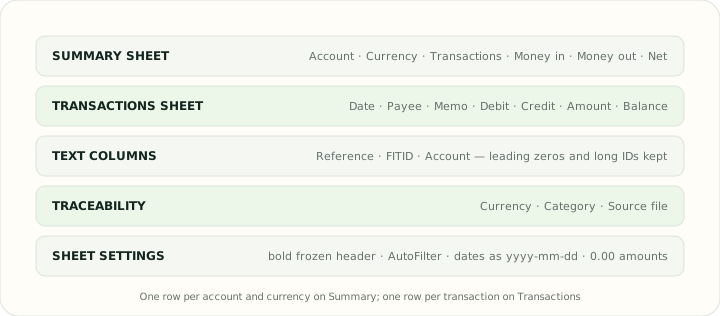
With the bank statement PDF to Excel converter you upload the PDF, check the preview of the first rows and the totals, then download an .xlsx workbook with a Summary sheet and a Transactions sheet. Searchable PDFs in a supported layout are converted by rules; scans, phone photos and unfamiliar layouts go to AI extraction, which checks the rows against the running balance and flags any gap. If you need a different output, the same upload can produce a CSV file or a Google Sheets-ready file.
Whichever converter you use, read its privacy terms. Bank statements contain your name, address, account number and spending history, so prefer a service that deletes uploads after processing and expires downloads quickly.
Method 3: convert the PDF with Excel's Get Data from PDF
Excel for Microsoft 365 on Windows can read tables from a searchable PDF through Power Query. Microsoft documents the connector in its Power Query PDF connector reference. The steps are:
- In a new workbook, open the Data tab and choose Get Data › From File › From PDF.
- Select the statement. The Navigator lists every table and page Power Query detected.
- Click each candidate to preview it and pick the one that holds the transactions. Tick Select multiple items if each page appears as its own table.
- Choose Transform Data rather than Load, so you can remove header rows, promote the real column names and set the Date column to the Date type and the amount columns to Decimal Number.
- Append the page tables into one, then click Close & Load.
Power Query works well on statements with a clear grid. It struggles when there are no ruling lines, when descriptions wrap, or when each page has a slightly different column position, because it then splits one transaction into two rows or merges columns. The benefit is that the query is saved: next month you can point it at the new file and refresh.
Method 4: convert with a general PDF to Excel tool
Adobe Acrobat's export to spreadsheet, online PDF converters and the free open-source Tabula table extractor all convert PDF tables to Excel or CSV. Tabula is a good option when you want to keep the file on your own computer: you draw a box around the transaction table on each page and export the selection.
These tools treat a bank statement as any other table, so expect to tidy the result. Common problems are a balance column shifted under the wrong header, the year missing from dates printed as day and month only, totals rows mixed in with transactions, and amounts such as 120.00- or (120.00) imported as text. They are a reasonable choice for a one-off statement with a simple layout, and a slow one for a year of statements.
Method 5: copy the PDF into Excel with Text to Columns
If the statement is one or two short pages and you have nothing else, select the transaction lines in your PDF reader, copy them and paste into column A of an empty sheet. Each line usually lands in one cell. Then use Data › Text to Columns to split it; Microsoft explains the options in its Text to Columns wizard guide. Choose Fixed width when the statement aligns columns with spaces, or Delimited with a space delimiter when it does not, and set the date column format on the last step of the wizard.
This is the method most likely to introduce errors. Descriptions containing spaces break across several columns, wrapped lines become extra rows, and a single missed line changes every total. Use it only when the reconciliation check described below is quick to run.
Clean up the Excel sheet after you convert the bank statement
Even a good conversion benefits from five minutes of tidying before you build formulas or pivot tables on it.
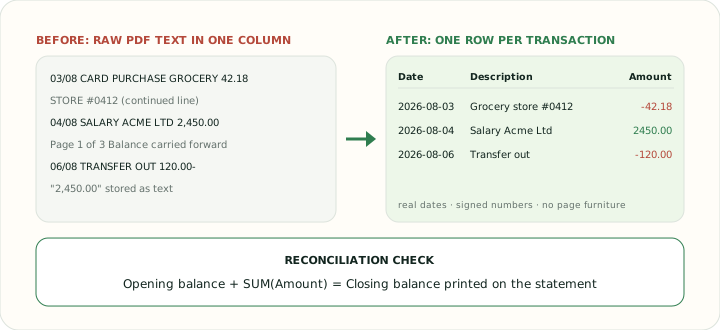
- Dates. Make sure Excel sees real dates, not text. Sort the column: text dates sort alphabetically, so 10/08 lands before 02/08. Watch for day-month versus month-day confusion on statements from another country.
- Numbers stored as text. A green triangle in the corner of a cell, or amounts aligned to the left, means Excel is treating them as text. Select the column and use Text to Columns with no delimiter, or multiply by 1, to turn them into numbers.
- One signed amount. If the statement has Money in and Money out columns, add an Amount column with
=C2-D2so credits are positive and debits negative. Pivot tables and imports into accounting software are much simpler with one signed column. - Wrapped descriptions. Join continuation lines back onto the transaction above, then delete the empty rows.
- Page furniture. Remove repeated headers, page numbers, Balance brought forward and subtotal lines, which would otherwise be counted twice.
Once the data is clean, convert the range into an Excel table with Ctrl+T. Tables keep formulas consistent as rows are added and make filtering by payee or month a single click.
Check the converted Excel file against the statement
The step most people skip is the one that matters most. A conversion that drops one line out of 300 looks perfect until the books do not balance. Run three checks before you use the workbook:
- Balance proof. Opening balance plus the sum of the Amount column must equal the closing balance printed on the statement. If you have a Balance column, the last row should show the same figure.
- Count and totals. Many statements print the number of transactions or total credits and debits in a summary box. Compare them with
=COUNT()and=SUMIF()results. - Spot check. Pick the first, last and three random transactions and compare date, description and amount with the PDF.
If the balance proof fails by an amount you can find in the statement, a row is missing or duplicated. If it fails by twice an amount, a debit has been read as a credit. Fix the row rather than adding an adjustment line, so the spreadsheet stays a faithful copy.
Keep the original bank statement PDF and the Excel file safe
A spreadsheet is a working copy, not an official record. Keep the original PDF unchanged next to the workbook, because a lender, tax authority or auditor will ask for the document the bank issued. The IRS explains how long to keep supporting records in How long should I keep records?, and the CFPB describes what a statement contains in What is a bank statement?.
Store both files somewhere encrypted or access-controlled, avoid emailing unprotected workbooks, and delete the copies you no longer need. If you share the spreadsheet with an accountant, consider removing the account number column first.
FAQ: converting a bank statement PDF to Excel
Can Excel open a PDF bank statement directly?
Not with File › Open. Excel for Microsoft 365 can import tables from a searchable PDF through Data › Get Data › From PDF, but it cannot read scanned statements, and the result usually needs clean-up.
Is it free to convert a bank statement PDF to Excel?
Bank downloads, Power Query, Tabula and copy-and-paste cost nothing beyond your time. Our converter is free for searchable PDFs within the daily limit; scanned statements and AI extraction use page credits.
Why are my converted amounts not adding up?
The usual causes are amounts stored as text, a money-out column added instead of subtracted, a Balance brought forward line counted as a transaction, or a page that was skipped. Run the balance proof above to find which one.
Can I convert a scanned or photographed bank statement to Excel?
Yes, but only with a tool that performs OCR or AI extraction. Check every scanned conversion against the printed balances, because recognition errors on faint digits are common.
Should I convert to CSV or Excel?
Choose Excel (.xlsx) when you want to analyse or share the data with formatting and several sheets. Choose CSV when the next step is an import into accounting software; the bank statement to QBO converter produces a QuickBooks file directly.
Sources: converting a bank statement PDF to Excel
The procedures above follow the publishers' own documentation, checked in October 2026. Menu names can change between software versions.
- Microsoft Learn — Power Query PDF connector: supported PDFs, the Navigator and multi-page table options.
- Microsoft Support — Text to Columns wizard: delimited and fixed-width splitting and column data formats.
- Tabula — Tabula: extract tables from PDFs: open-source desktop tool for selecting and exporting PDF tables.
- Internal Revenue Service — How long should I keep records?: retention periods for supporting documents.
- Consumer Financial Protection Bureau — What is a bank statement?: what a statement contains and why to review it.